The Power of Personalization, one by one
October 3, 2024If you’re just here for the code, here’s the link.
As a 2nd year engineering student, I was tasked with creating a Design Thinking project. What’s so ‘Design Thinking’ about the project, you ask? Well, it’s about understanding the user’s needs and designing a solution that meets those needs. Instead of starting with a solution, you start with a problem and work your way towards a solution, based on user feedback.
Naturally, surveys are a big part of this process. They’re great for understanding what the user wants, what they like, what they do, and so on. Everyone at my college made a Google Form, and sent it to the entire college through the email groups. The email groups forwarded emails to all students within them, and they’re a pretty good solution for getting your survey out there.
But there’s a problem. The emails are bland. They’re the same for everyone. Filled with an AI-generated description of the survey, and a link to the Google Form, they’re just a generic email that’s sent to everyone. Since everyone in my batch are doing such projects now, everyone are getting bombarded with emails. They’re not interested in reading them, and many just ignore them.
Imagine this, but with tens of these pouring into your inbox every day.
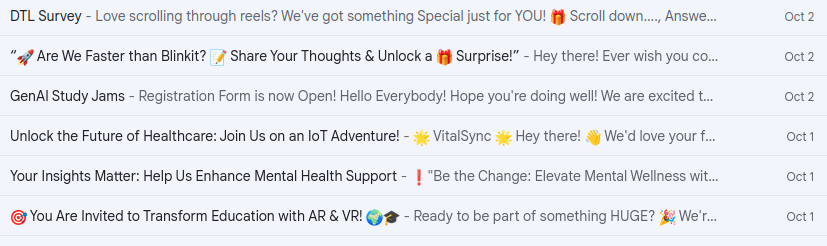
Enter personalized emails. Instead of sending the same email to everyone, you send a personalized email to each recipient. You make the email more personal, and you make the recipient feel like you’re talking to them directly. A little personal touch goes a long way.
Now now, the whole reason we created email groups was to send emails to everyone at once. After all, sending 1500 emails individually is a pain. Let me walk you step by step through how I implemented mail merge to send personalized emails to everyone in my batch.
How emails actually work
You might have heard of the protocol SMTP. It stands for Simple Mail Transfer Protocol, and it’s the protocol used to send emails. When you send an email, your email client connects to an SMTP server, and sends the email to the server. The server then forwards the email to the recipient’s email server, again through SMTP, which then delivers the email to the recipient’s inbox. There’s a double SMTP involved here, one between your client and your email server, and another between your email server and the recipient’s email server.

Mass emailing should be just as easy as automating that first SMTP connection. You connect to the SMTP server, and send the email to everyone in your list. There’s plenty of SMTP libraries out there that’ll make coding this a piece of cake. Pretty simple, right? Well, for now.
SMTP uses username and password authentication to send emails. You can’t just connect to an SMTP server and start sending emails. You need to authenticate yourself first. So you’d expect that you can use your gmail email id and password to send emails, right? Wrong.
Usernames and passwords are insecure. Google doesn’t allow you to use your email id and password to send emails through SMTP. Instead, you need to use an app specific password. You can generate one in your Google account settings if you have two-factor authentication enabled.
Sadly, my organization disallows two-factor authentication. Whether that’s a good decision or not is a topic for another day, but it means I can’t use an app specific password. So what do I do?
There’s a silver lining. It doesn’t really matter how you send the email to Gmail’s servers, as long as you send it. If Gmail’s servers just know that you’re sending an email, it’ll send it. That’s how the gmail web client works - you can’t make SMTP connections from your browser, but you can still send emails.
The solution
That’s where the Gmail API comes in. It’s a lot more complicated than using an SMTP library, but it’s the only way to send emails without using an app specific password, which I can’t get, because my organization disallows two-factor authentication.
Setting this up isn’t very easy either - you first have to make an app in the Google Cloud Console, create an OAuth client ID (for a desktop app), and then use that to authenticate yourself. It’s a bit of a hassle, but it’s the only way to send emails without using an app specific password. I’ve attached a few links below that’ll help you get started.
What about the email addresses?
Sending personalized emails only works if you have the recipient’s email address. That’s pretty much why the email groups were created - to have a list of email addresses that you can send emails to, without having to know all of them.
Fortunately, our benevolent benefactor, the Dean, regularly sends out emails of lists containing all the students’ names and email addresses. If you figure out how to parse the PDF file, you can get all the names and email addresses you need.
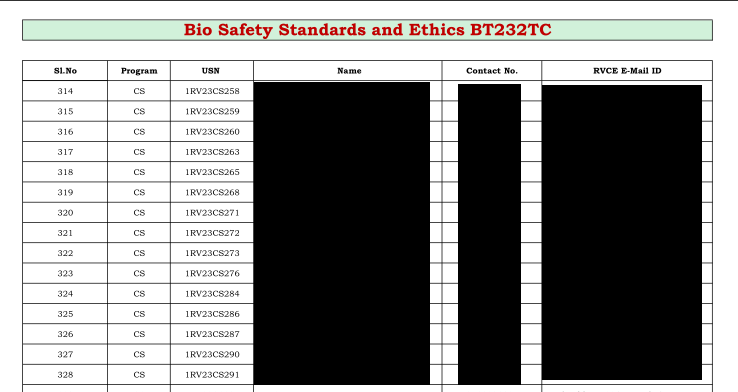
A simple PyPDF script will do the job. Here’s an example of one such script. It’s pretty simple - it reads the PDF file, parses the text, and stores all the data in a csv file. I just asked ChatGPT to write this script for me, and it did a pretty good job.
Putting it all together
I’m gonna link the code here so you can check it out. Let’s walk step by step through the code and see how it works.
When you first run the program, it’ll ask you to authenticate yourself. You’ll get a link that you need to open in your browser, and then copy the code that you get back into the terminal. This is part of the OAuth flow that I mentioned earlier. You’ll only need to do this once, as the program will store the credentials in a file.

I didn’t want to send all emails at once to everyone. Anticipating errors, I decided to send emails in batches. The program will ask you to select a department, and then it’ll send emails to everyone in that department. You can run the program multiple times to send emails to everyone.
Did you know that you can use HTML in emails? It’s a great way to make your emails look better. I just wrote a sample HTML file, and put a placeholder ‘{name}` in it. The program reads the HTML file, replaces the placeholder with the recipient’s name, and sends the email. Same for the subject - I just put a placeholder ‘{name}’ in the subject, and replaced it with the recipient’s name.
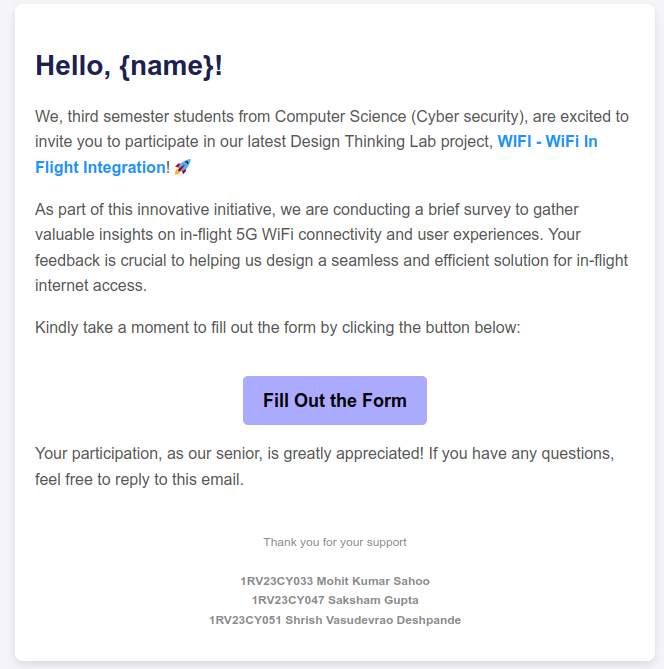
Here’s me sending it to everyone in the information science department.

And lo! The emails send one, by one, by one. It’s a bit slow, but it works. I sent out a survey to everyone in my batch, and I got a lot more responses than I would have if I had sent a generic email. People actually read the email, and responded to the survey. It was a success.
The impact
People were pleasantly surprised to receive a personalized email. Many replied to the email, asking how I did it. Some people even mentioned that they read the email because it was personalized.

The little personal touch made a big difference. People were more likely to read the email, and more likely to respond to the survey. It’s a small thing, but it made a big difference. You’re likely to get a lot more impressions this way.
I hope you learned something about how emails work, and how to implement your own mail merge. Check back again for more interesting posts!
Built with 💖 using Astro and TailwindCSS.
© 2024 Shrish Deshpande. Licensed under the GNU Affero General Public License v3.
Hosted on Cloudflare™ Pages. Source Code